 Workspace
 Windows and screens
Create and choose layouts
Divide a screen into reusable zones for your windows.
What it solves
A layout divides a monitor into zones. Reserve a large zone for your main task and smaller zones for supporting tools. A layout arranges windows; it does not open applications on its own.
Create a layout
- Open the zone editor from the app or your configured shortcut.
- Choose a template as your starting point.
- Adjust dividers, merge or split zones, and check their sizes.
- Give the layout a recognizable name and save it.
- Assign it to the monitor and desktop you want to use, or select it when configuring workspace items.
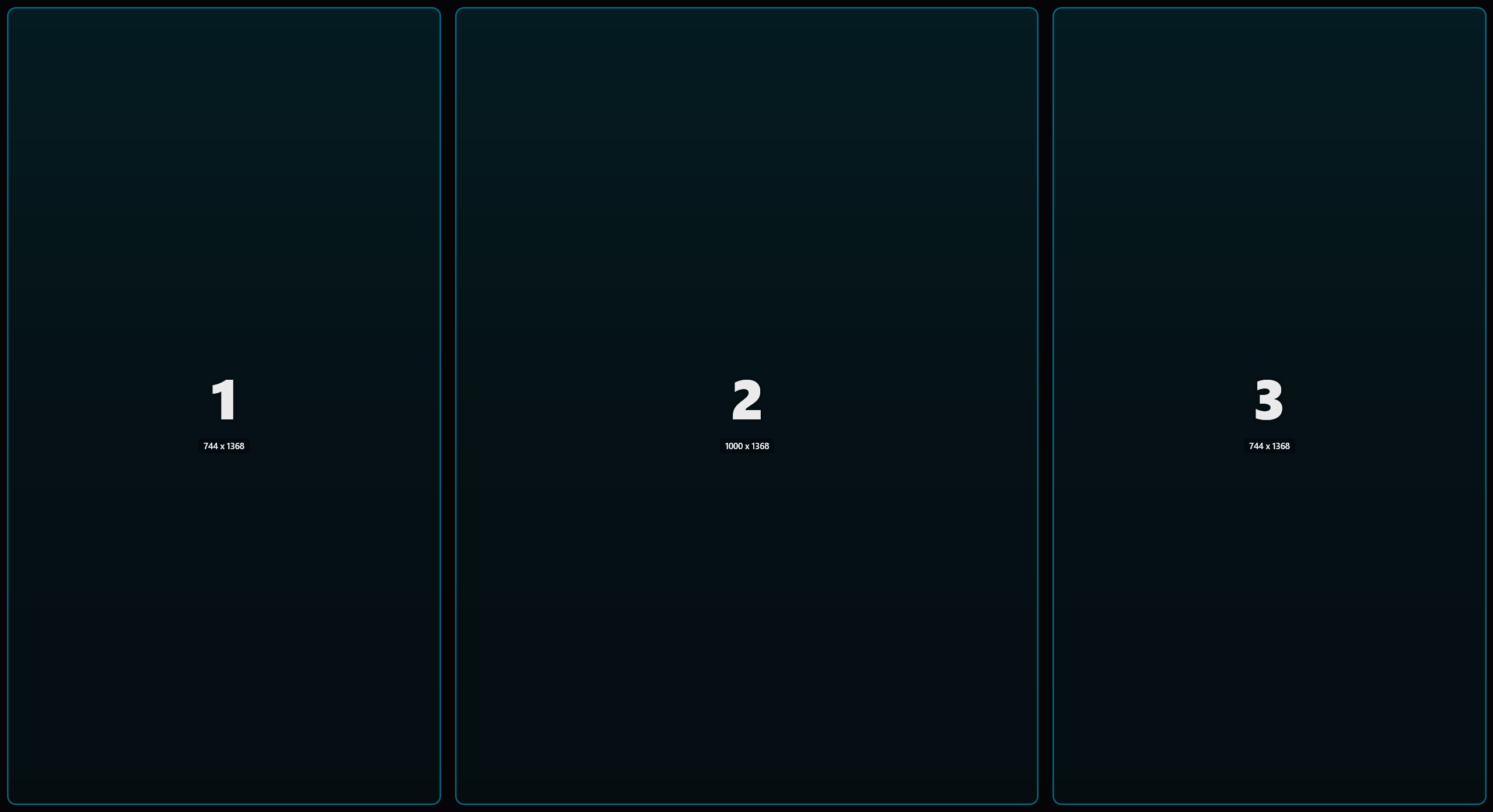
Choose useful zones
Leave enough room for real content: a window may have a minimum size that limits a small zone. Several windows can share a zone through rotation. An item using free positioning keeps its saved location without needing a zone.
Make changes later
Review workspace assignments after changing their layouts. Saving a layout and launching a workspace are separate actions. Read layout coexistence to understand which layout is used with multiple workspaces open.
Reviewed on